E-commerce plugins
Shopify Dev Dashboard app
Connect Shopify manual payments with a Dev Dashboard MakePay app, hosted checkout blocks, and order status sync.
Integration model
The Shopify integration uses the Shopify V2 Dev Dashboard app flow. The
merchant creates the fixed MakePay app manually in Shopify Dev Dashboard,
then provides an app-scoped App Automation Token once so MakeCrypto can deploy
that specific app. Shopify shows the Client ID and Client secret inside Dev
Dashboard, so the merchant copies both values into MakeCrypto before
deployment.
App Automation Tokens are created inside one Dev Dashboard app. They can deploy and update only that app, so MakeCrypto no longer creates the Shopify app from an organization-wide Partner CLI token.
After the app is deployed and installed, Shopify launches MakeCrypto with a signed session token. MakeCrypto validates that token with the Client secret and exchanges it for an offline Admin API token. That token is encrypted at rest and used for the same MakePay order workflow as before: order sync, hosted payment links, notes/tags, webhooks, and optional mark-paid automation.
Legacy Admin API access token setup is no longer supported for new Shopify connections. Existing stores connected with that older flow must reconnect through the V2 setup.
Shopify Dev Dashboard app
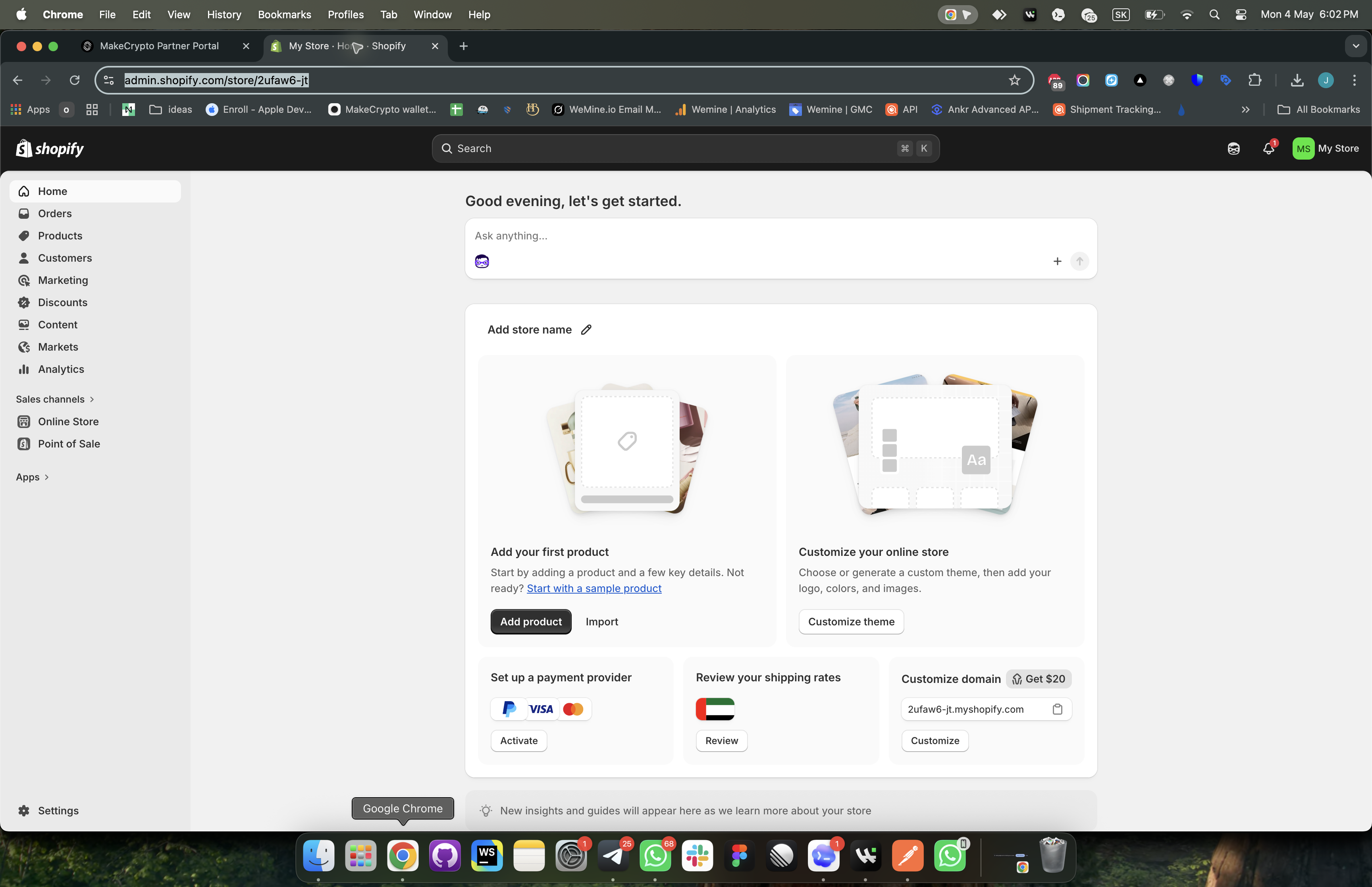
In Shopify Dev Dashboard, create a new app named MakePay. After Shopify opens
the app, go to Settings and copy these values into MakeCrypto:
- the Settings page URL, for example
https://dev.shopify.com/dashboard/219764947/apps/372040761345/settings - Client ID
- Client secret
- App Automation Token
Required Admin API scopes:
read_customerswrite_customersread_productswrite_productsread_orderswrite_ordersread_draft_orderswrite_draft_ordersread_themeswrite_themes
MakeCrypto applies the required scopes during deploy. The deployed Shopify app
name is always MakePay.
MakeCrypto onboarding
Open MakeCrypto, choose the company, then go to E-commerce > Shopify. Add a store with:
- Shopify store slug, which is the part before
.myshopify.com - Shopify Dev Dashboard app Settings URL
- Shopify Client ID and Client secret from the MakePay app settings
- one-time Shopify App Automation Token from the same MakePay app settings page
- manual payment method name
The App Automation Token is encrypted until MakeCrypto deploys and installs the app, then it is cleared. Paste a fresh token only if deployment later says the saved token is missing, revoked, or expired. The Client secret and offline Admin API token are encrypted at rest.
To generate an App Automation Token, open the MakePay app in Shopify Dev Dashboard, go to Settings, create a token in the App automation token section, choose an expiration, generate it, and copy it immediately. Shopify only shows this token once.
The MakeCrypto Shopify wizard has five steps:
- Save the Dev Dashboard app reference.
- Save the Client ID, Client secret, and App Automation Token from app settings.
- Deploy the MakePay app with the app-scoped token.
- Install the app on the Shopify store.
- Add checkout blocks and the manual payment method.
Deploy and install
Run deploy from MakeCrypto after the credentials are saved. When deployment shows as deployed, open the MakePay app in Shopify Dev Dashboard and use the Install app button on the app overview. MakeCrypto can generate the same install URL from the saved Shopify organization ID and Client ID. Shopify redirects back to MakeCrypto after installation.
The install link is available after deploy. Older Partner Dashboard custom distribution links are no longer used in the MakeCrypto onboarding.
Checkout blocks
Open Shopify admin and go to Settings > Checkout > Customize. Add the MakePay block to the Thank You page and the Order Status page, then save.
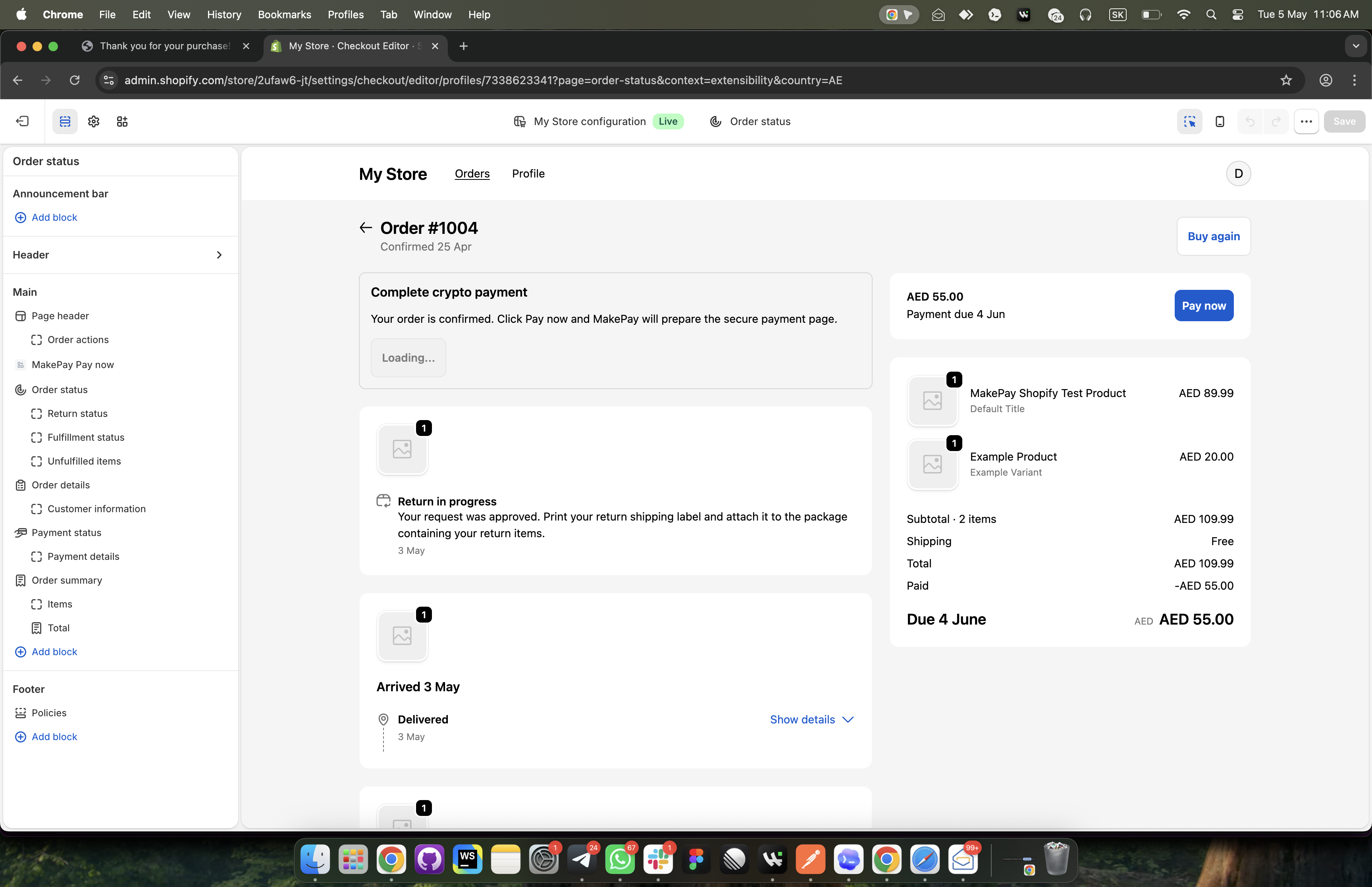
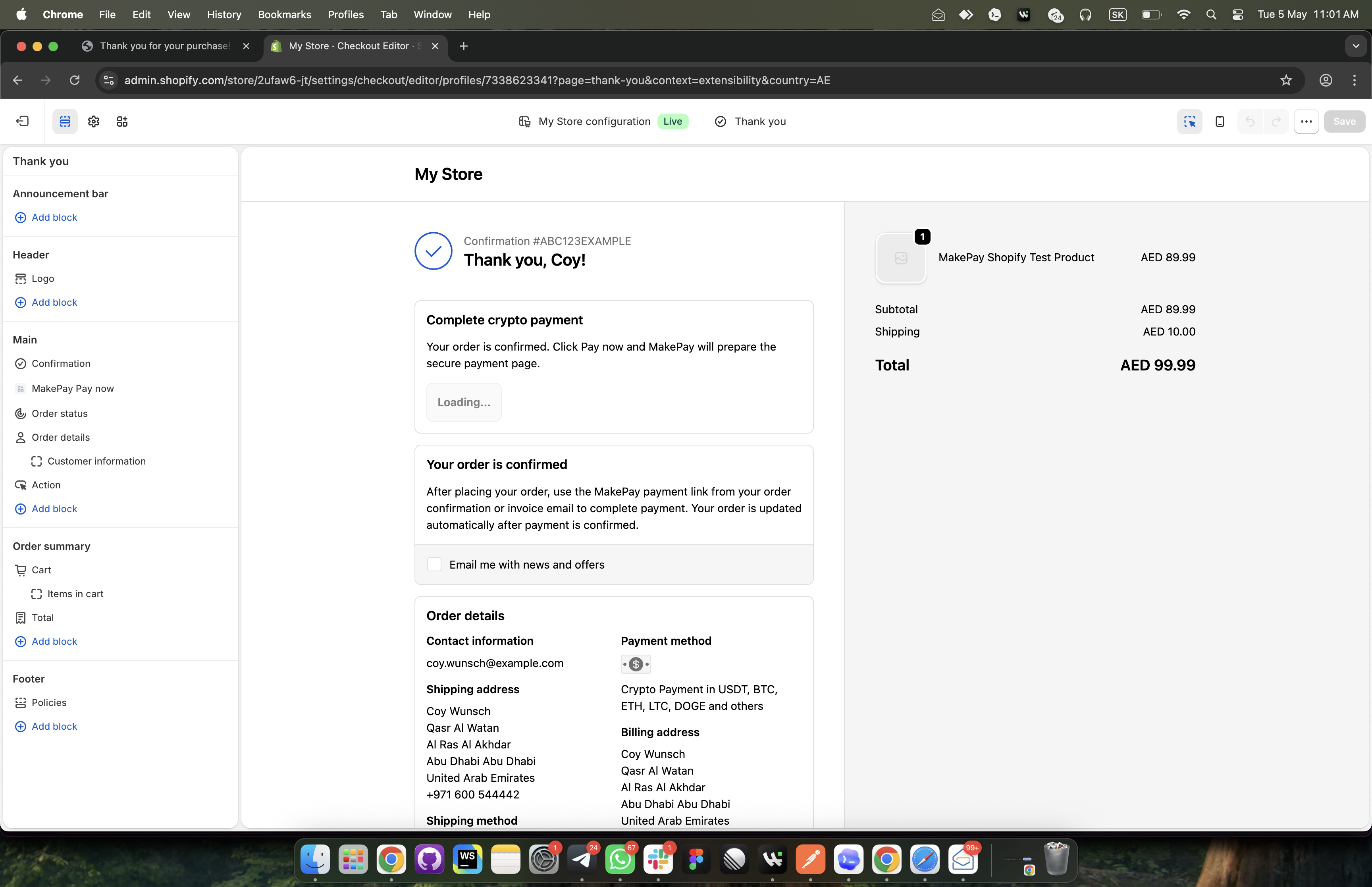
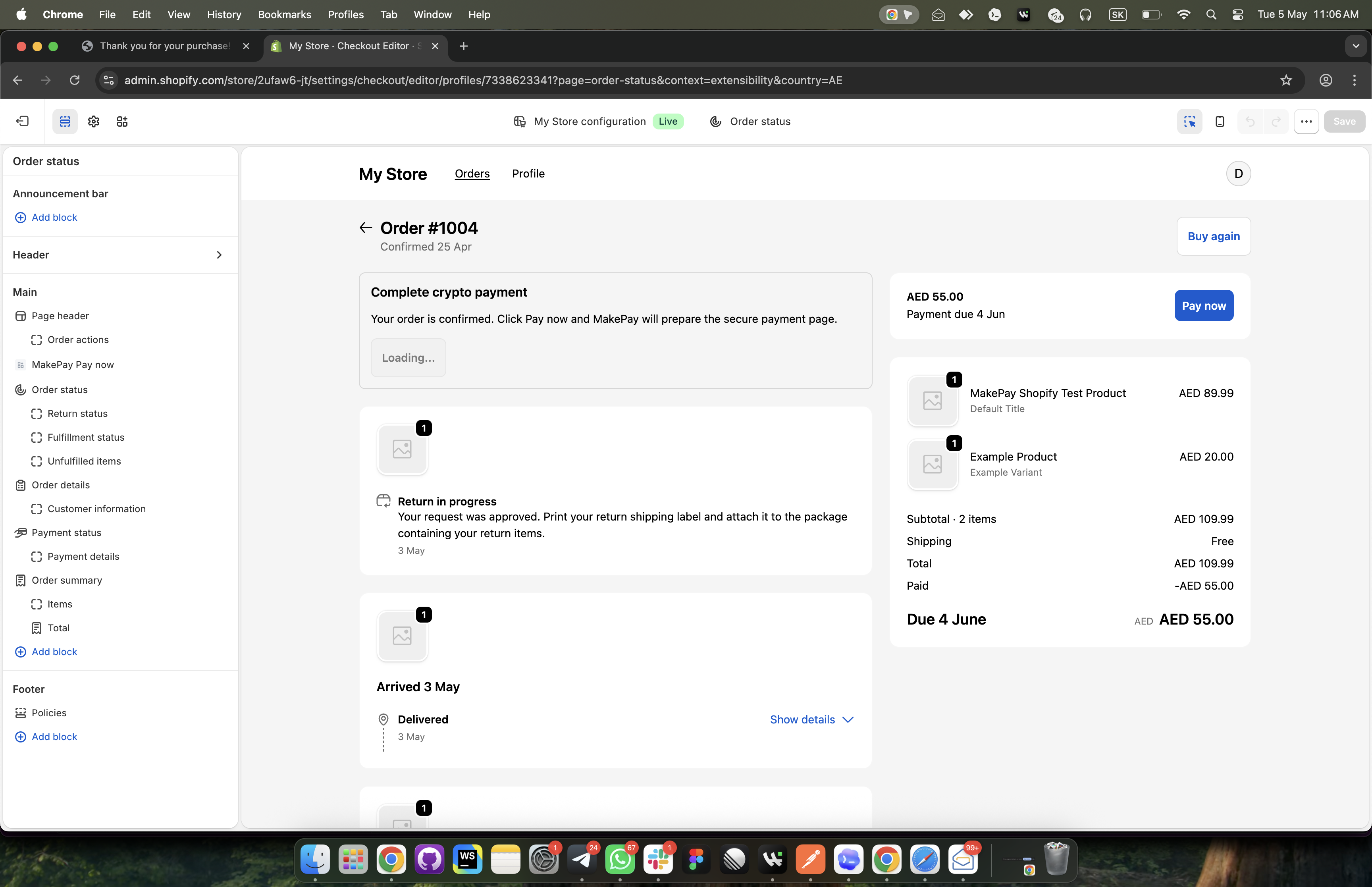
The MakePay block verifies Shopify's session token, asks MakeCrypto for the matching payment link, and displays a Pay now button. If the order webhook is still being processed, the block waits briefly while MakePay prepares the link.
Manual payment method
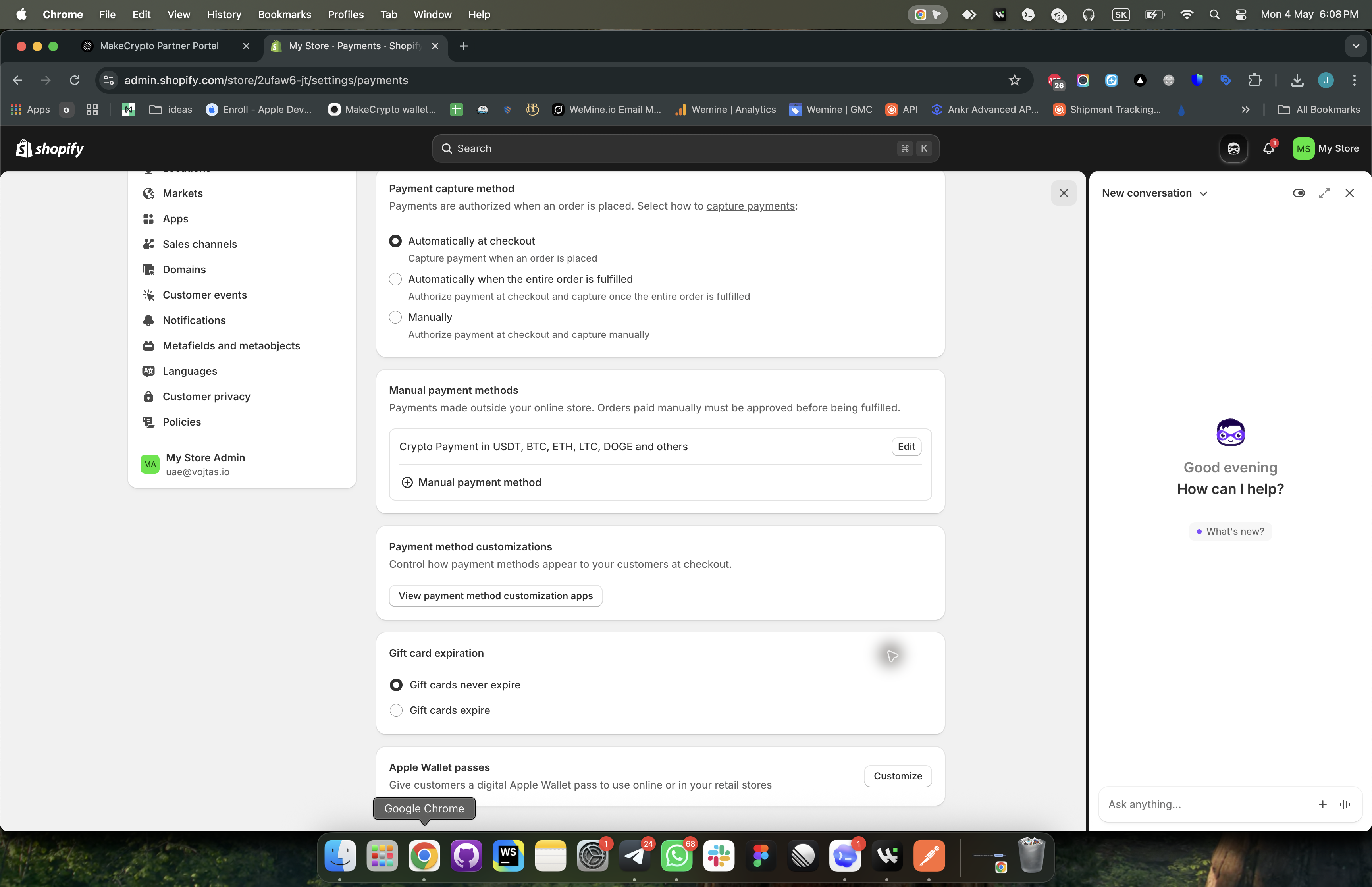
In Shopify admin, open Settings > Payments > Manual payment methods and create a custom payment method. Its name must exactly match the MakeCrypto connection payment method name. New MakePay connections default to:
Crypto Payment in USDT, BTC, ETH, LTC, DOGE and others
When customers choose that method, Shopify creates the order as unpaid. MakePay sync attaches the hosted checkout URL to the order note and can send a MakePay payment request email when enabled.
Shopify does not expose the configured manual payment method list to MakeCrypto through the Admin API. After adding the method in Shopify, return to the MakeCrypto final checklist and click I added it. MakeCrypto also confirms the method automatically later if a synced Shopify order uses the exact method name.
Webhooks and sync
MakeCrypto registers order create/update and app uninstall webhooks after the V2 install completes. A scheduled sync also checks recently connected stores, so orders are still picked up if Shopify webhook delivery is delayed.
Incoming Shopify webhook signatures are verified before the payload is accepted. Request and webhook logs are kept on the connection page for troubleshooting.
Status mapping
When a Shopify order is pending through the MakePay manual payment method, MakePay creates or reuses a MakePay payment link for the order total and customer email.
When the MakePay payment reaches complete, MakePay adds a paid note/tag and
uses Shopify Admin API orderMarkAsPaid when auto-mark-paid is enabled.
When a MakePay payment reaches failed, expired, or cancelled, MakePay
adds a status note and leaves the Shopify order unpaid for merchant review.
Troubleshooting
If deployment fails, confirm the App Automation Token starts with atkn_,
belongs to the same MakePay app, and has not been revoked or expired before the
job starts, then retry from MakeCrypto.
If install fails, confirm the Shopify app was created by the same MakeCrypto setup and that MakeCrypto's generated app URL is configured by the deploy.
If Test connection fails, verify the app has all required scopes and reinstall or redeploy the app.
If the Pay now block stays in preparing state, confirm that the MakePay block is installed on both checkout pages and that the Shopify order uses the exact manual payment method name.